What is an AI image editor?
An AI image editor lets you change parts of an existing image with natural-language instructions while preserving the visual context that should stay.
AI image editor
Change objects, clothing, backgrounds, expressions, materials, lighting, or text while preserving the rest of the image. Imagine Image turns an edit into a focused instruction instead of a restart.
One focused instruction
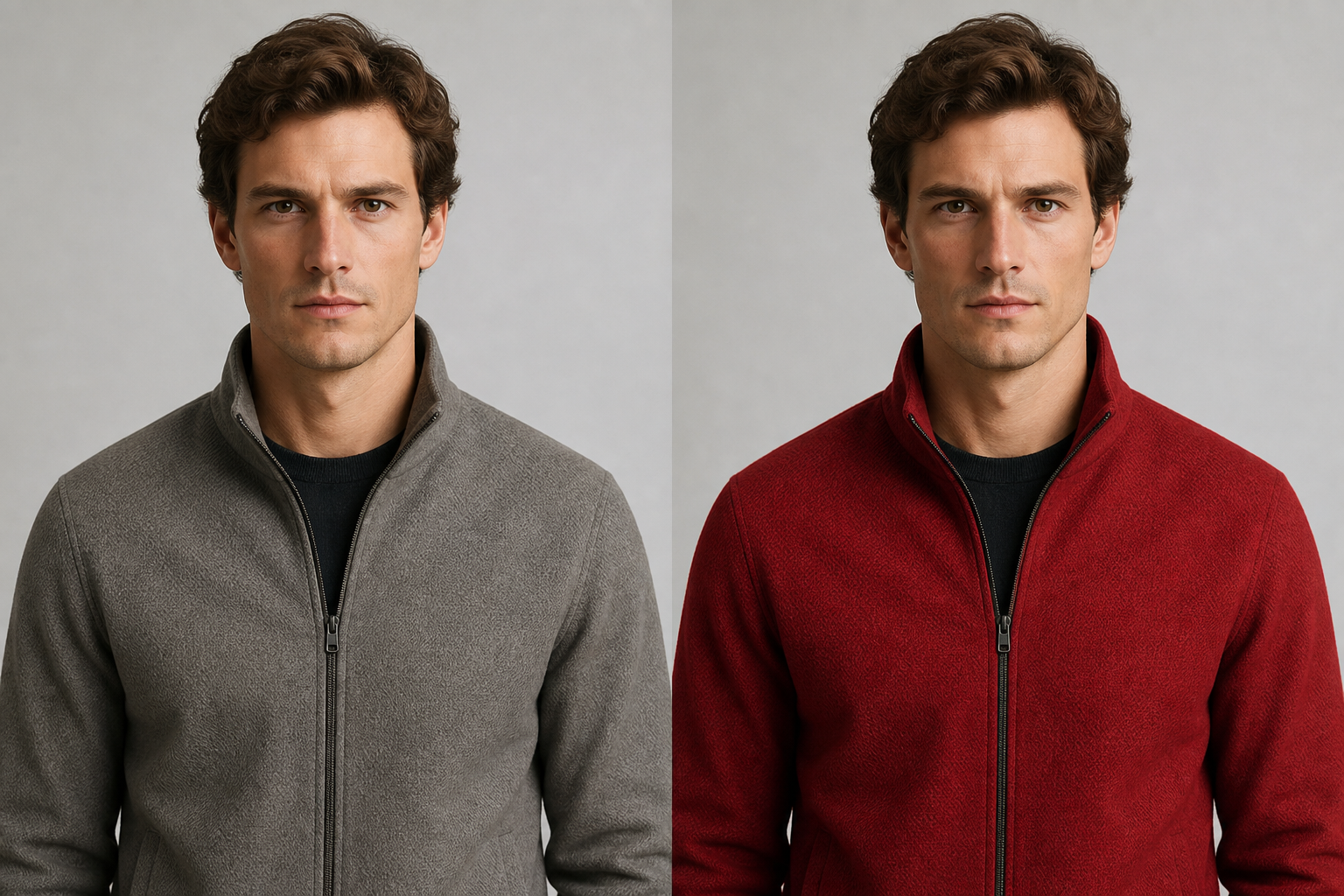
Change this. Keep everything else.
Start from a generated image or an existing visual, point to the part that needs work, and describe the intended result in natural language. The edit stays connected to the composition, identity, and lighting around it.
Use precise editing when the image is close and starting over would throw away the decisions that already work.
Instruction
“Change the jacket to red. Keep everything else.”
What you can change
Choose the action that matches the visual problem, then keep refining from the result.
Swap a cup, product, person, prop, or background element while the scene stays coherent.
Delete distractions, signs, people, or objects and reconstruct the space behind them.
Change the material, color, texture, atmosphere, or visual treatment of a selected region.
Refine expression, pose, lighting, shape, perspective, or other meaningful attributes.
Introduce an object, accessory, line of text, or environmental detail with a clear instruction.
Correct a headline, label, or layout detail without rebuilding the entire poster.
The result is still an input
After the change, make a variation, resize the composition, remove another distraction, use the result as a reference, or deliver it in the format the work needs.
An AI image editor lets you change parts of an existing image with natural-language instructions while preserving the visual context that should stay.
Yes. Select the object or describe the target, then ask Imagine Image to remove, replace, restyle, or adjust it while reconstructing the surrounding scene.
Yes. Give the exact text and explain its placement, hierarchy, and treatment so the edit remains part of the composition.
Create a variation, adapt the aspect ratio, remove the background, use the edited image as a reference, or continue refining another detail.
The first image is only the beginning.
Bring an image into the workspace and make the next creative decision precise.
Edit an image